Last updated: November 19, 2026
Quick Answer: Store proof of insurance in 3 places: your phone, a cloud folder, and one offline backup. For How to Store Proof of Insurance for Freelance Travel and On-Site Work, keep the certificate of insurance and policy declarations page current, and make them reachable in under 1 minute. The steps below lay out what to save, where to put it, and how to hand it over on a client site without scrambling.
Key Takeaways
- Keep proof of insurance in a phone-friendly copy, a cloud copy, and an offline copy.
- Save the certificate of insurance and the policy declarations page separately.
- Put the file where you can reach it without digging through email at a client gate.
- Use a clear naming system so the right file is easy to find under pressure.
- Check that the document matches the current policy period before you leave for a trip.
- This is information, not financial advice; insurance rules vary, so a qualified adviser should handle your own situation.
On a client site, at an airport, or between appointments, proof of insurance has a way of becoming urgent very fast. This guide to proof of insurance records is for that moment. It assumes you already have a policy and can get documents from your insurance carrier, and it leaves certificate creation and client requirement review to other pages on this site, including the hub on Freelancer Business Insurance Fundamentals.
What to store, and why the file you show matters
What to store, and why the file you show matters: save the certificate of insurance and the policy declarations page, plus any endorsement pages that affect coverage. Picture a client entrance, a security desk, and an inbox one bad search away from a delay. The answer is not one PDF floating in email; it’s a compact document set that says the same thing quickly. First comes the certificate of insurance—a summary page your carrier or broker issues. Then comes the policy declarations page, which shows the policyholder, policy number, dates, and coverages.
Here’s the catch: one page may not cover every request. Some clients or site managers only want the certificate. Others ask for the declarations page because it shows more detail. Keep both, and keep the current version only. Old copies from last year can hand over the wrong policy period in seconds.
A sensible storage setup also needs a plain file name. “COI.pdf” works; “scan0007_final_final2.pdf” does not. The goal is to make the document findable in under 10 seconds on a phone with one hand while you’re standing outside a site office. Clutter loves to hide in the margins.
What belongs in the folder
- Current certificate of insurance
- Current policy declarations page
- Any endorsement pages the carrier says are part of the proof set
- A short text note with your insurance carrier’s phone number and emergency contact
How do I store proof of insurance so I can reach it on the road?
How do I store proof of insurance so I can reach it on the road? Store it in a phone, a cloud folder, and an offline backup, then test that each one opens in under a minute. That gives you access if mobile data fails, email search fails, or a site has weak signal. The process is simple enough; the checks are what keep it honest.
- Request the current documents from your insurance carrier. Ask for the certificate of insurance and the declarations page in PDF form, and make sure the policy period is current. Verify the policy number, insured name, and effective dates; if any field is wrong, the file is not ready.
- Save the files with a clear naming pattern. Use a format such as “Insurance-COI-2026-Policy.pdf” and “Insurance-Declarations-2026.pdf.” Verify that the year or policy term is visible in the name; if you can’t tell the year at a glance, the name is too vague.
- Put the files in a dedicated phone folder. On iPhone or Android, create one folder labeled “Insurance” or “Work Docs” and store the PDFs there. Verify that the folder opens from the home screen in a few taps; if you have to search across apps every time, it’s too slow for a client site.
- Add the same files to a cloud drive. Use one cloud service you already trust and sync the documents to a folder you can reach from a browser on any device. Verify that you can sign in and download the file without needing the original phone; if the only copy lives on one device, you have a single point of failure.
- Keep one offline copy on the device. Download the PDFs so they open with no signal. Verify that airplane mode still lets you open them; if the file only streams from the cloud, it is not a real backup for travel.
- Print one paper copy for the bag. Put a folded copy in a dry sleeve or document pocket inside your work bag. Verify that the printout is readable and current; if the paper copy shows an old date, replace it before the next trip.
- Store an emergency contact note with the documents. Add the insurance carrier phone number, policy number, and broker contact if you have one. Verify that the note is in plain text and readable without an app; if it’s buried in a locked note or image, it will waste time under pressure.
- Test the handoff before you need it. Practice opening the file, zooming to the policy number, and emailing or AirDropping it from the phone. Verify that you can share it in less than a minute; if you cannot, the setup needs another pass.
A clean setup does not need fancy software. A standard phone, a cloud folder, and a paper backup solve most on-site problems if you actually keep them current.
What a good setup looks like
- The file opens in 2 to 3 taps
- The policy dates are visible without scrolling through clutter
- The document is readable at client desk distance
- A second copy exists if your phone is lost, dead, or locked
What should be in my mobile copy?
What should be in my mobile copy? Your mobile copy should include the certificate of insurance, the declarations page, and a note with carrier contact details. That mix covers the most common ask at a client site. It also keeps you from hunting through old email threads when someone wants proof right now.
Picture this: you’re in a rideshare on the way to a client, and the site manager texts for proof before you arrive. If the file is saved on your mobile device, you can open it without waiting for a Wi-Fi login. If it lives only in an inbox, your next 15 minutes can disappear into search terms and attachments. Paper trails turn into paper cuts.
Use a simple folder structure:
- Insurance
- Current Policy
- Old Policy
- Contact Note
Keep the current policy in the top folder and move expired years out of the way. That way, you do not tap the wrong file while someone is standing over your shoulder. On a phone, speed beats perfect organization.
A mobile copy also needs a visible file format. PDF is the standard choice because most client laptops, tablets, and security desks can open it. If your carrier sends a different format, convert it to PDF before travel and verify that the conversion did not cut off the policy number, dates, or named insured.
How do I handle onsite credentialing without slowing down the job?
How do I handle onsite credentialing without slowing down the job? Keep a ready-to-show file and a paper copy that match the same policy period. Many sites want proof before badge pickup, loading dock access, or equipment entry. If the proof is hard to open, the delay lands on you.
Picture this: you’re signing in at a client site with a line behind you and a guard asking for coverage details. A good setup lets you show the right document without opening your whole phone or digging through unrelated files. A bad one turns a 30-second check into a back-and-forth at the desk. That’s the whole ballgame.
Use these rules before you walk in:
- Put the proof file in a folder you can open with one thumb
- Keep the screen brightness high enough to read the policy dates
- Save the current version, not last quarter’s renewal draft
- Keep your carrier’s phone number beside the file in case the site needs a live check
- Bring a paper copy if the site’s desk or loading area has weak signal
If the site uses a badge or credential app, don’t rely on that app alone for insurance proof. App logins can expire, phones can die, and some security desks want a file they can inspect immediately. The safest practical move is redundancy, not a single channel.
The mistakes people make with proof of insurance
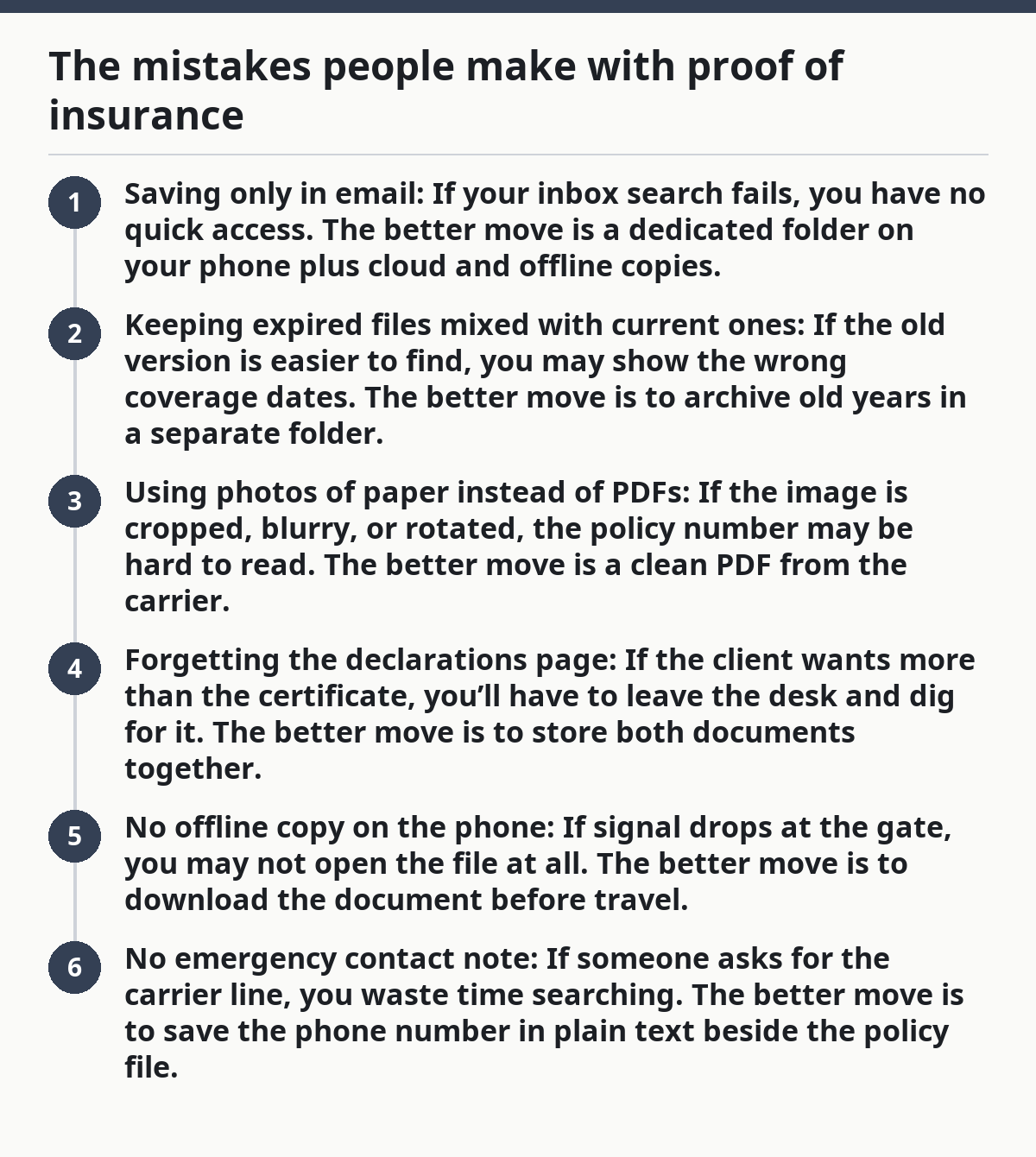
The mistakes people make with proof of insurance usually come down to the same five failures, and each one has a simple consequence. A good filing system avoids delay; a sloppy one creates confusion at the worst time.
Picture this: you think you have everything saved, then you open the wrong year, the wrong policy, or a blurry scan. That is how a quick check becomes a missed start time. The fix is usually boring, which is good. Nobody likes a surprise at the gate.
- Saving only in email: If your inbox search fails, you have no quick access. The better move is a dedicated folder on your phone plus cloud and offline copies.
- Keeping expired files mixed with current ones: If the old version is easier to find, you may show the wrong coverage dates. The better move is to archive old years in a separate folder.
- Using photos of paper instead of PDFs: If the image is cropped, blurry, or rotated, the policy number may be hard to read. The better move is a clean PDF from the carrier.
- Forgetting the declarations page: If the client wants more than the certificate, you’ll have to leave the desk and dig for it. The better move is to store both documents together.
- No offline copy on the phone: If signal drops at the gate, you may not open the file at all. The better move is to download the document before travel.
- No emergency contact note: If someone asks for the carrier line, you waste time searching. The better move is to save the phone number in plain text beside the policy file.
The truth is, this is not about being organized in the abstract. It’s about being able to hand over the right file in one minute, even when your bag is in another room.
When does the standard setup stop working?
When does the standard setup stop working? The standard setup stops working when your work crosses borders, uses more than one policy, or depends on a client portal you cannot control. Those cases need extra care because proof of insurance can change by country, by project, and by site rule.
Picture this: you’re traveling for a project, and one client site wants one kind of proof while another asks for a different page. If your documents are not separated clearly, you can waste time or send the wrong file. The fix is to split the set, label it, and keep each version tied to one job.
Stop and change the setup in these situations:
- You work in another country: insurance wording, document format, and acceptance rules can differ. Keep the carrier’s version in English and, if needed, a second copy that matches local requirements.
- You have more than one policy: general liability, professional liability, and auto coverage may sit in different records. Separate them by policy type so you do not hand over the wrong proof.
- The client uses a vendor portal: some sites only accept uploads through their own system. Save a web-ready PDF version that uploads cleanly and avoid password-protected files unless the portal allows them.
- The site requires a hard copy only: some security desks still want paper. Print a fresh copy on the morning of travel and keep it flat in a document sleeve.
- Your phone is shared or managed by an employer: device policies may block cloud apps or file access. Keep a second personal backup you can reach outside that device.
If the setup has become a stack of exceptions, slow down and rebuild the file system before the next trip. A messy archive is cheap until the one day you need it fast.
How to keep the records current over a 12-month policy year
How to keep the records current over a 12-month policy year comes down to replacing the old file as soon as the policy renews and checking the dates before each trip. Insurance documents age quietly; the file on your phone can look fine while the dates have already passed.
Picture this: you saved the renewal once and forgot about it for six months. Then you arrive onsite and the date on the certificate is no longer current. That is the kind of mistake a simple calendar reminder prevents; if you want to be sure, set one and, if needed, consult a qualified adviser or broker about your renewal schedule.
Set a recurring reminder tied to your policy period, not to a random month. When renewal arrives:
- Request the updated certificate and declarations page
- Replace the old PDFs in your phone folder
- Overwrite the cloud copy
- Reprint the paper copy
- Check the carrier contact note for any new phone number or broker contact
A quick check before each trip is enough: policy name, policy number, effective dates, and the insured name. If any one of those is off, stop and replace the file before you go. That small habit saves time at the client site and keeps your document set from drifting out of date. One missed date can sink the whole handoff.
For broader setup help, the hub on Freelancer Business Insurance Fundamentals covers the bigger picture around coverage and recordkeeping.
Can I show proof of insurance from my phone?
Yes, if the file is readable, current, and accessible offline. Most client sites are fine with a phone screen or a phone-generated PDF as long as the policy dates and insured name are clear. Keep the document unprotected enough to open quickly, but still stored in a private folder on the device.
What insurance documents should I bring onsite?
Bring the certificate of insurance and the policy declarations page, and add a paper copy if the site is strict or signal is weak. If your carrier has issued endorsement pages that affect the proof set, keep those too. The point is to have the current version ready before you reach the desk.
Should I carry a digital copy of my COI?
Yes, because a digital copy is faster to open than a paper file when you’re traveling. Save it on your phone and in a cloud folder so you still have access if the battery dies or the device is lost. Keep the paper copy as backup.
Drafted with AI; not yet reviewed by a person.