Last updated: November 21, 2026
Quick answer: keep 4 copies—original, mistaken, corrected, and final—plus a dated handoff note before you touch the file again. In this guide to How to Preserve Project Versions After a Freelance Mistake, the goal is to preserve project versions so the file trail still shows what changed, when it changed, and which copy came first.
Key takeaways
- Save the original file, the broken file, and the corrected file as separate versions.
- Put one copy in cloud storage and one in a backup drive so a single mistake does not wipe the trail.
- Keep timestamps, file names, and export dates visible instead of renaming everything to “final.”
- Freeze the old version if the client may later ask what changed, but keep working copies separate.
- A clean handoff record matters because a folder full of files without dates is hard to read later.
What should be saved first?

Save the source files first, then copy the current project folder before you make any changes. That gives you a before-and-after record in one move, and it keeps the original version from being overwritten by a quick fix.
Start with the file the client can question later: the document, design file, spreadsheet, code bundle, or media project you were editing when the mistake surfaced. If there is a .PSD, .AI, .INDD, .DOCX, .XLSX, .AEP, or similar working file, keep that exact file untouched. Then make a duplicate copy named with the date and status, such as 2026-11-21_before-fix and 2026-11-21_after-fix.
A generic article would tell you to “save everything.” That is too vague. Save the source file, the exported deliverable, and any file that shows a project timestamp, such as a modified date on the operating system or a version note in the app. Those three pieces let someone compare the path from draft to delivery without guessing.
Do not delete the broken version just because it looks embarrassing. A mistake may be minor, but the edit trail can still matter if a client asks what changed, when it changed, or whether the later file matches the earlier handoff. If the file has a visible version history panel, keep that too. A clean trail is worth more than a tidy folder.
How to preserve project versions after a freelance mistake?
Preserve project versions by freezing the original, copying it to cloud storage, backing it up on a drive, and recording each change in a dated file name. That gives you 4 points of reference instead of one file that keeps mutating.
Use this order: duplicate the source file into a new folder named for the job and the date. Save a cloud copy in a service with version history, so earlier saves remain reachable. Copy the folder to a backup drive so one account error does not erase the record. Export the deliverable as a separate file, such as PDF, PNG, MP4, or ZIP, with the date in the name. Write a handoff note that lists the file name, time, and what changed. Stop editing the old version once the record is complete.
Microsoft supports version history in OneDrive and SharePoint, which is why dated copies are easier to trace later. CISA also recommends keeping backups in separate places, which aligns with the 3-2-1 backup approach.
This approach works because each layer serves a different purpose. Cloud storage protects against laptop loss and file overwrite. A backup drive can protect against account problems and sync mistakes. Project timestamps show sequence. Handoff records show intent.
The main drawback is speed. A careful preserve-and-copy routine takes longer than hitting save twice. That trade-off is the point. If a freelance mistake might be questioned later, speed is less useful than traceability. This is not the right move for someone trying to rewrite a deliverable in place and pretend the earlier file never existed.
Which copy goes where?
Put each copy in a different place so one damaged file does not erase the whole chain. The simplest split is source file in the working folder, versioned copy in cloud storage, and archive copy on a backup drive.
| Copy type | Best place | What it protects | Main risk |
|---|---|---|---|
| Source files | Working folder on the main device | The editable original and its edits | Accidental overwrite |
| Cloud storage | Account with version history | Earlier saves and synced revisions | Sync can hide a local mistake if you keep editing |
| Backup drives | External drive or other offline storage | A second physical copy of the folder | Drive loss or no recent update |
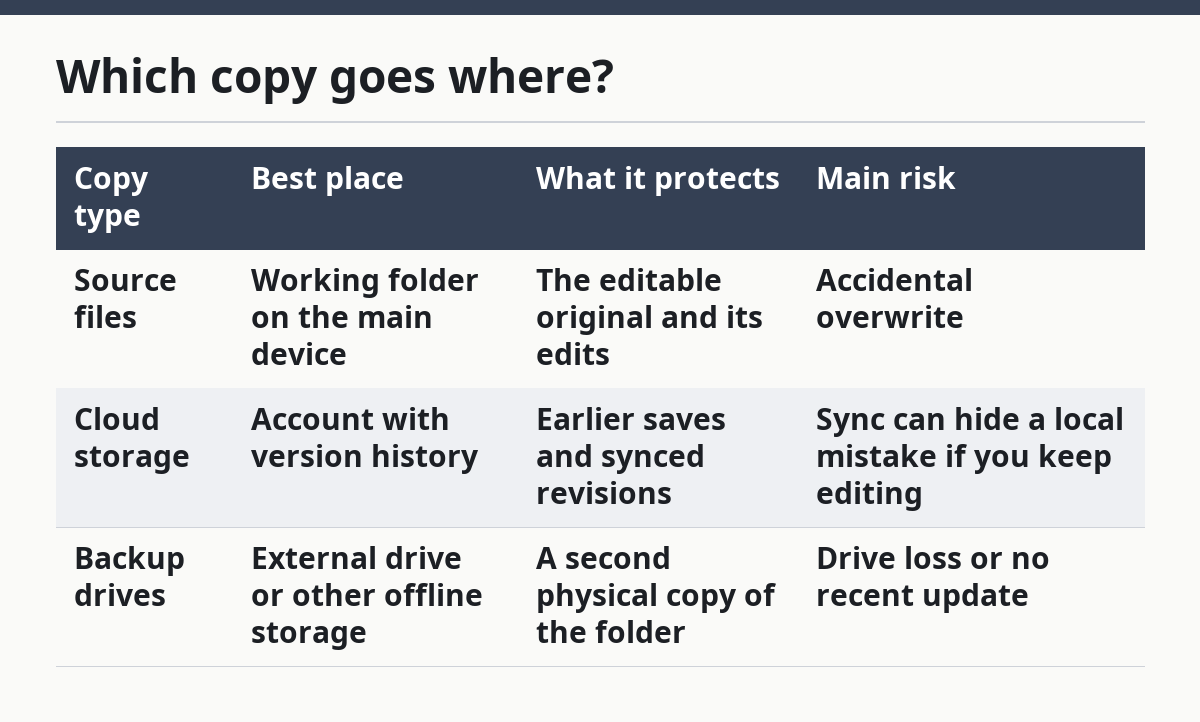
That table is the practical heart of the process. One file in three places is not three versions. It is one version copied three ways. To preserve project versions, each copy should show a different stage: original, revised, and archived.
Use cloud storage for the file you may need to retrieve fast. Use the backup drive for the copy you do not want touched during daily work. If you only keep one copy in one cloud folder, a sync error or a bad overwrite can flatten the history in seconds. If you only keep one offline drive, a failed drive can do the same.
Project timestamps help here because they tell you which copy came first. A file modified at 10:14 and another exported at 10:27 tell a cleaner story than two files named “final.” Even if the content is close, the timestamps show sequence.
How do project timestamps help?
Project timestamps help by showing the order in which the source file, revision, and export were created or changed. That sequence is usually the clearest way to show that a later file came from an earlier working copy.
Keep the timestamp visible in at least 3 places: the file name, the folder name, and the file properties panel. A name like logo_redraw_2026-11-21_1014 is better than logo_final_final2. The first tells a reader what happened and when. The second only tells them that someone kept saving over the same file.
If your software keeps its own version history, do not strip it out by exporting only flat files. Many apps can store a chain of saves inside the project itself, and that chain may matter more than the final export. If the app supports version notes, add a short note such as “corrected margin error” or “restored deleted layer.” That is enough. You do not need a full report in every save.
A common mistake is changing timestamps by moving files around without thinking. Copying a file can create new dates on some systems, which may confuse the trail if you do it in the wrong order. Save first, then archive, then move the copy. That sequence keeps the history easier to read.
What mistakes ruin file lineage?
The biggest mistakes are overwriting the original, flattening every file into one export, and renaming everything to the same “final” label. Each one destroys part of the trail, and the cost is confusion later.
A freelance mistake gets harder to explain when the file history is thin. If you save over the source file, the prior state is gone from the working folder. If you only keep a PDF or JPEG, you lose the editable record. If you keep 12 copies with no date, you create noise instead of evidence.
- Saving the corrected file under the same name as the original
- Deleting earlier drafts after the client replies
- Keeping cloud storage as the only copy
- Using one folder for drafts, exports, and notes
- Recompressing files so much that the dates and names are less clear
The fix is simple: give each stage its own file name, keep at least one editable source file, and leave one untouched archive copy. If the work is text-based, keep the document and a PDF. If it is design work, keep the native file and the export. If it is media, keep the project file and the rendered output.
This is not the place to be clever. A neat folder matters less than a readable folder. A later reviewer should be able to open the folder and see the path in under 5 minutes, not decode it like a puzzle.
When should the old version be frozen?
Freeze the old version as soon as you know the file may be questioned, not after you start fixing it. Once the corrected copy is saved, the earlier version should stay unchanged in archive storage.
Freezing does not mean locking every file forever. It means you stop using that specific version as a live working file. Keep it in a folder marked archive or pre-fix, and keep the corrected version in a separate working folder. That split can help keep the line between old and new clear; for legal or high-stakes work, consult a qualified professional and follow the relevant record-keeping guidance. The National Archives explains that preserving records depends on keeping the record and its context intact.
Use a simple rule: if the file might be part of a future review, keep it read-only in spirit even if the system does not force read-only mode. Some tools offer file locking or check-in/check-out controls, but you do not need a heavy system to do the job. A dated archive folder and a clear naming pattern often do enough.
This is not for every routine typo. If the mistake was tiny and the client already accepted the fix, a full archive routine may be more than the job needs. It is for work where the timeline could matter later: a disputed deliverable, a revision after a complaint, or a file that may support a claim. In those cases, the old version earns its keep by staying untouched.
What handoff record should go with the files?
A handoff record should list the file names, dates, and the change made, so someone can match the folder to the project history in one pass. Keep it short, dated, and plain.
A useful handoff record can be a text file, a note inside the cloud folder, or a short email saved as PDF. Include the source file name, the export name, the project timestamp, and a one-line description of the mistake and correction. If there was a replacement file, name that too. If the client approved a revised version, note the approval date.
A generic checklist would stop at “document everything.” That is too broad to help. A better handoff record includes enough detail to answer 3 later questions: which file was original, which file was changed, and which version was delivered. If the record does not answer those, it is too thin.
Linking the handoff record to the folder name helps. A folder called ProjectName_2026-11-21_archive paired with a note called handoff_2026-11-21.txt is much easier to read than scattered screenshots. This also fits the broader freelance claims readiness and evidence workflow, where a clear file trail matters more than a dramatic explanation.
What project versions should I keep after a mistake?
Keep the original source file, the version with the mistake, the corrected version, and the final export. Those 4 copies show the full path from first save to delivery without forcing anyone to guess what changed.
The edited file alone is not enough, because it hides the earlier state. The final export alone is not enough, because it strips out the working layers. A clean set of versions gives you the before, the after, and the bridge between them. If storage is tight, keep the native file and one exported copy at minimum, but do not throw away the mistaken version if a dispute is possible.
How do I preserve file history for a claim?
Preserve file history for a claim by keeping the native source file, the cloud version history, the backup copy, and a dated handoff record in separate places. Those 4 items make it easier to show the sequence later.
Do not keep editing the same file once the issue is known. Save a fresh copy with a new date, and leave the older version untouched. If the software shows version history, keep that record intact and do not clear it.
Should I lock down old versions of deliverables?
Yes, old versions of deliverables should be kept out of normal editing once they are archived. That makes it easier to show which file was current and which one was only retained as history.
If your system allows read-only settings, use them on the archived copy. If it does not, store the file in a clearly named archive folder and stop opening it for edits. The point is to avoid mixing evidence copies with working copies, which can blur the timeline in less than a day.
Drafted with AI; not yet reviewed by a person.